
Input
A small but recognizable image
The subject, major edges, and composition should still be identifiable. A privacy mosaic, fully unreadable label, or face reduced to anonymous blocks is not a reliable recovery task.
AI Image Depixelator
Upload a small or compressed image whose subject is still recognizable. The depixelation workflow increases working resolution and smooths blocky transitions while keeping the original composition, aspect ratio, objects, and text layout available for comparison.
Illustrative preview · does not reverse redaction or recover censored information
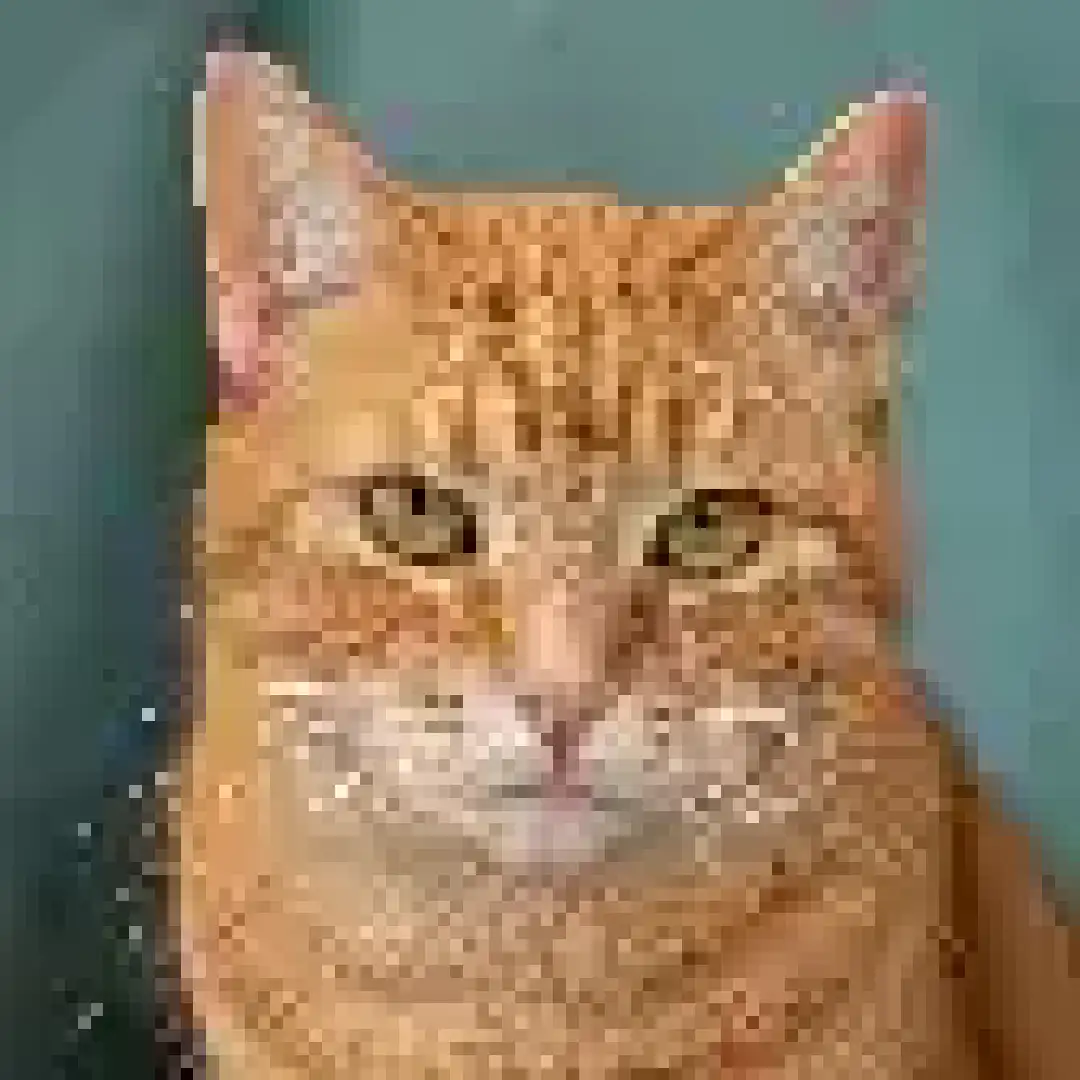
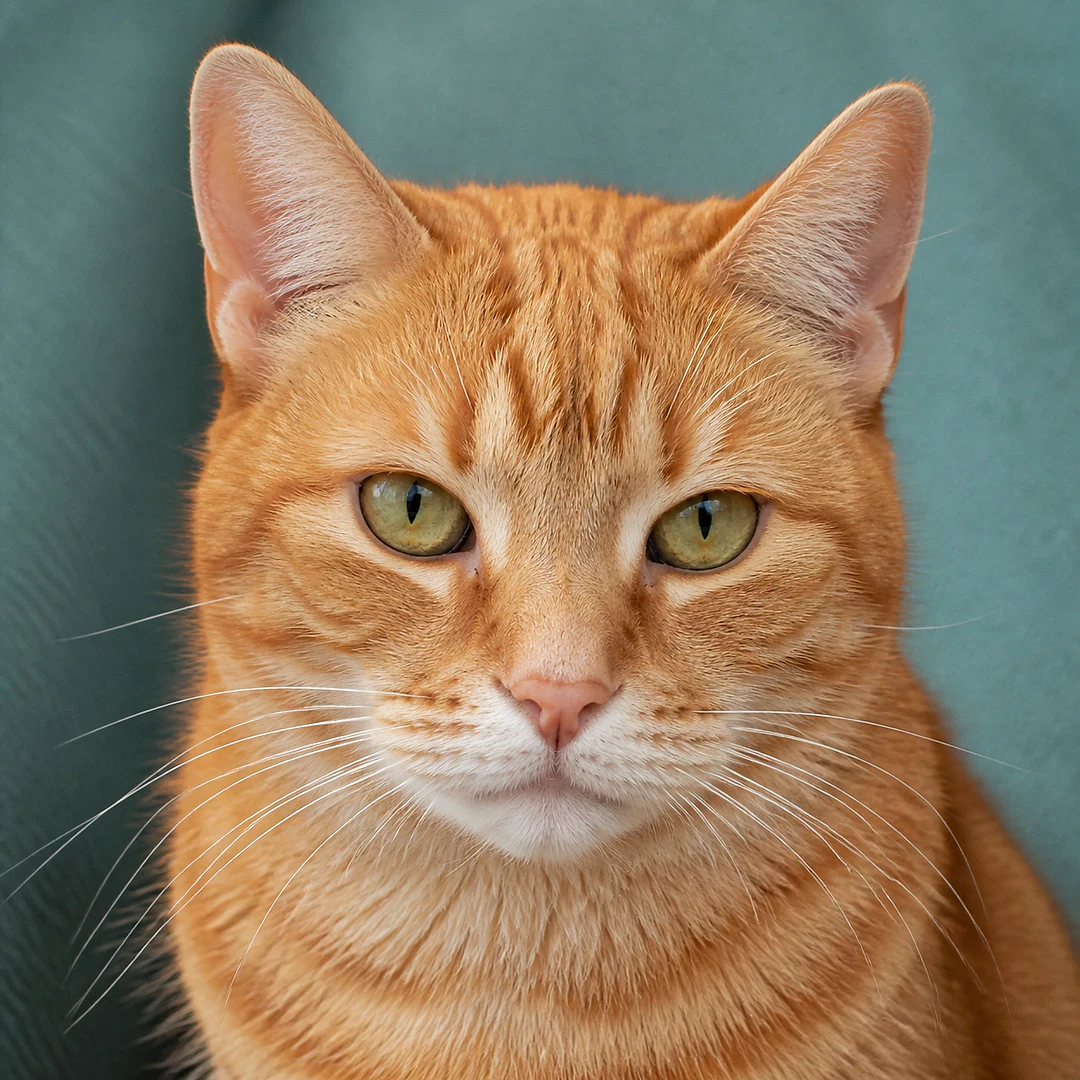
Illustrative same-subject preview showing smoother block transitions while preserving the cat, pose, window light, crop, and background. It does not prove recovery of authentic missing fur detail.
Pixelation is different from camera blur. This page targets visible square blocks, stair-stepped edges, and low working resolution rather than estimating a motion path or merely increasing edge contrast.
The selected route uses the server-owned super-resolution policy to create a larger image from a recognizable source. More pixels can make the file easier to place in a layout, but output dimensions do not prove that every new fine detail was captured originally.
Jagged diagonals, square compression blocks, and rough boundaries can become less distracting when enough object shape remains visible. Flat logos, diagrams, and typography may still require vector redraw or source-file replacement rather than photographic enhancement.
Compare faces, product labels, text, and thin lines with the source. The workflow does not perform OCR, reveal censored content, or guarantee that an estimated texture represents the original object exactly.
A pixelated image contains fewer independent samples than a large original. Depixelation can enlarge the image, smooth transitions, and estimate plausible texture around visible shapes. It cannot travel back to the missing source file. Privacy mosaics, deliberate redaction, unreadable text, and absent facial detail should remain treated as unknown rather than recovered fact.
Use the result for a cleaner working image, not as evidence that estimated letters, identity details, or product markings are authentic.
Start with the largest surviving copy and judge the result at the size where it will actually be used. Excessive zoom can make both the source and the enhanced version look misleading.
Use the original download, camera file, or exported graphic before choosing a screenshot. Avoid repeatedly saved JPEG copies because each generation can add new blocks and color noise around edges.
The server routes this page through its super-resolution policy while keeping normal upload, entitlement, retry, and download checks. Visiting the URL selects the task; query parameters do not create extra indexable versions.
Compare the result in the slide, profile, store listing, or screen size where it will appear. Check straight lines, small labels, face shape, and repeating texture for invented or melted detail.
Input
The subject, major edges, and composition should still be identifiable. A privacy mosaic, fully unreadable label, or face reduced to anonymous blocks is not a reliable recovery task.
Processing
The route increases working resolution and estimates smoother transitions around visible forms. The server owns the model mapping, so clients cannot submit arbitrary provider identifiers.
Output
Review the larger result at the intended display size. Keep the source available and verify small text, logos, faces, and repeated patterns before using the output.
These inputs share one product flow: enlarge a recognizable low-resolution image and reduce distracting blockiness. They do not require separate pages for every file subject.
An old avatar or contact image can be enlarged when the head shape and main features remain visible. Treat any newly crisp eyelashes, skin marks, or lettering as estimated detail that needs comparison.
Marketplace downloads can show blocks around edges and smooth materials. Check labels, logos, stitching, and product geometry carefully; brand text that changes after processing should not be accepted.
A raster graphic can become easier to place in a slide or mockup, but icons, typography, and flat shapes often benefit more from the original vector file. Depixelation should not replace a source asset that still exists.
Images saved through several apps often combine low resolution with JPEG blocks. Use the earliest copy available and judge whether the result reduces distraction without changing faces, objects, or scene layout.
Use this page when square blocks and low pixel dimensions are the main issue. Nearby tools handle general upscaling, text pixels, or camera blur with different expectations.
Upload one recognizable image, compare edges and small details, and use the result at a realistic viewing size.
What super-resolution can improve, where estimation begins, and which source files work best.